Vizora: Taking control of screen time
Vizora is an open source alternative to Google’s Digital Wellbeing for Android. It tracks app usage, sets time limits, and helps you build healthier digital habits—all while keeping your data completely local and transparent.
What It Tracks
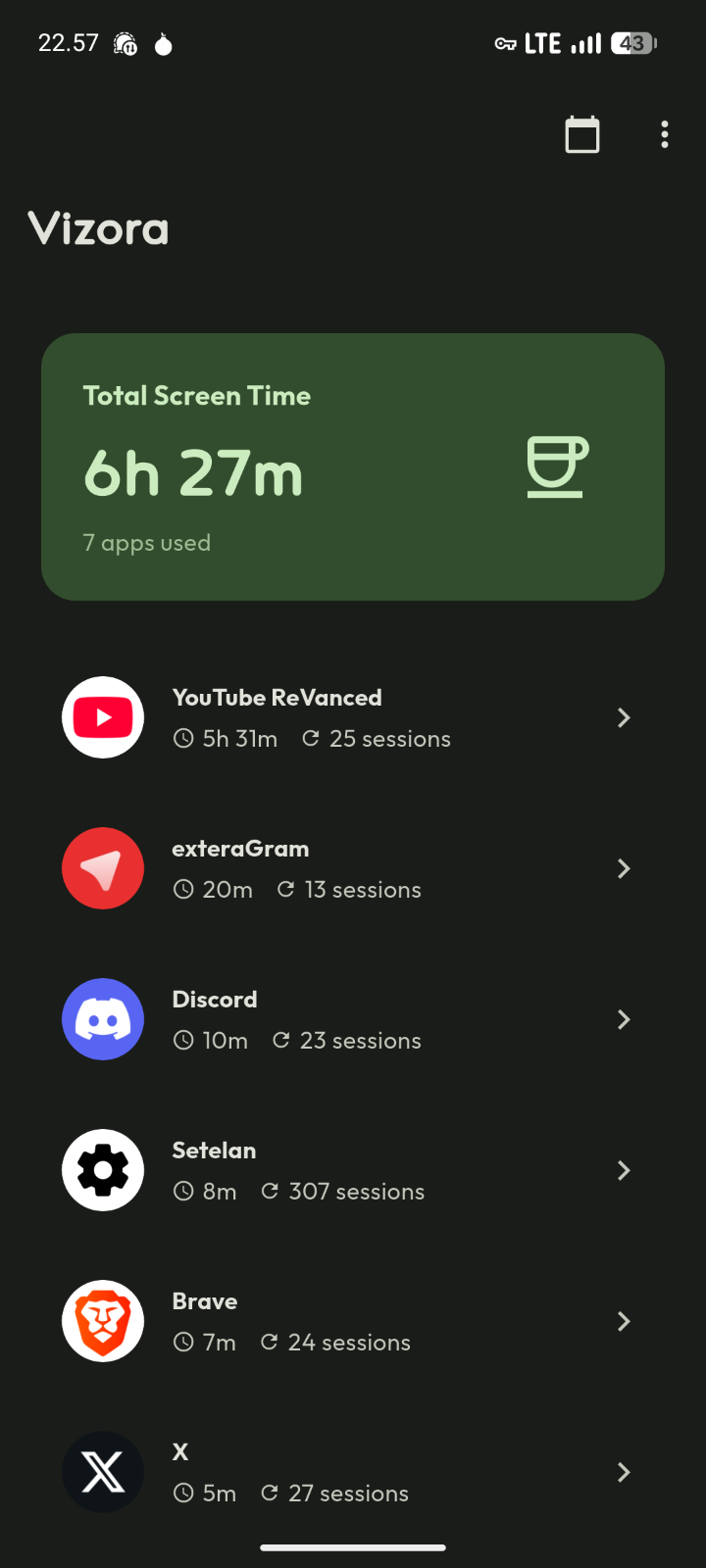
The app monitors which apps you use, how long you use them, and when you use them. It breaks down your usage by day, week, or custom date ranges. You can see total screen time, individual app usage, and hourly patterns throughout the day.
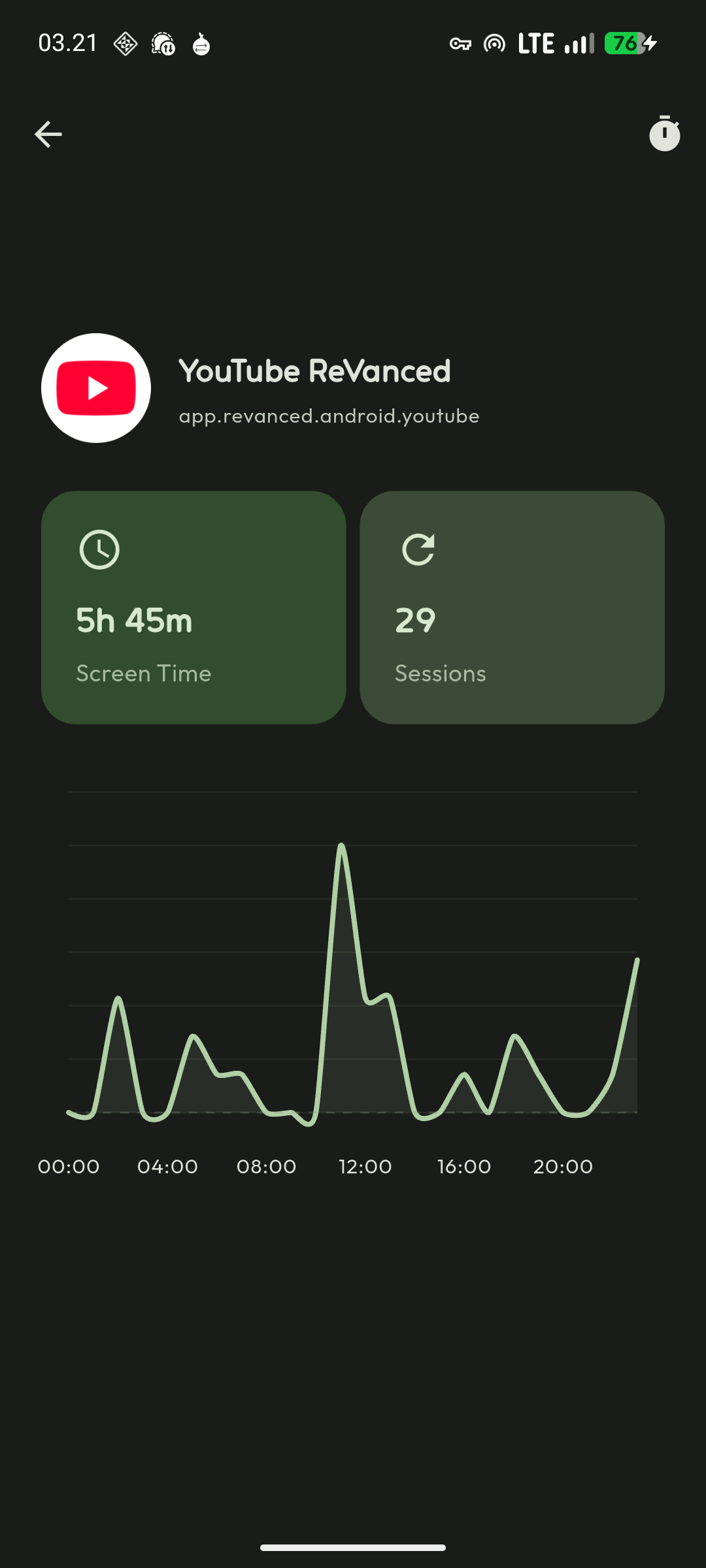
Charts show usage distribution across apps and time patterns. Line charts reveal when during the day you’re most active on your phone and which apps you use at different times.
Session tracking records each time you open an app with start times. This gives you a detailed timeline of your phone usage rather than just aggregate statistics.
App Timers
Set daily time limits for any app, similar to Digital Wellbeing. Choose anywhere from 5 to 300 minutes per day. The app shows visual indicators of how much time you’ve used and how much remains.
When you hit your limit, Vizora can block the app or just notify you that you’ve exceeded your target. The blocking uses Android’s accessibility service to detect when you open a restricted app and immediately returns you to the home screen.
This isn’t foolproof. Determined users can disable the accessibility service or uninstall Vizora. The device admin permission helps prevent accidental uninstall, but it’s not a parental control system. It’s a tool for people who want to limit their own usage.
Home Screen Widgets
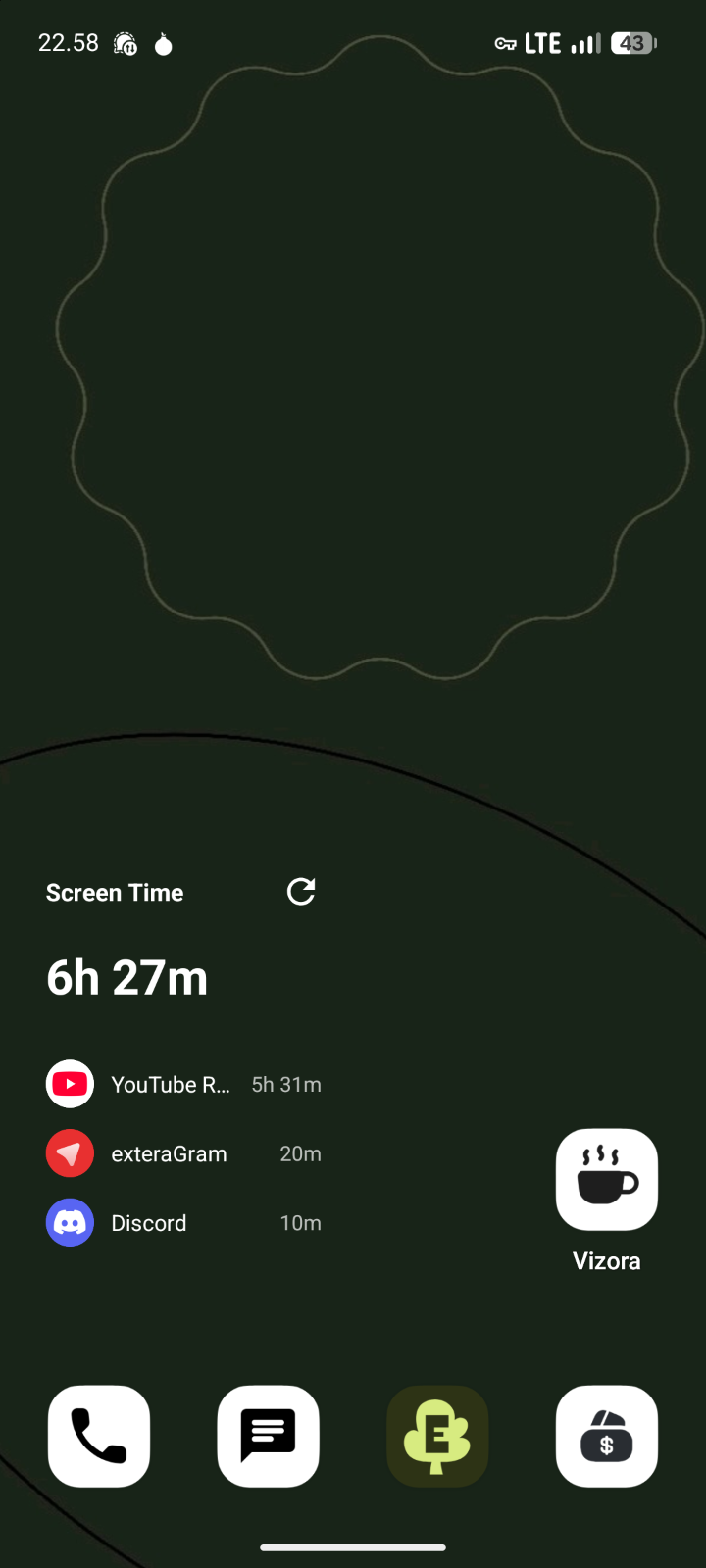
Two widget sizes give you quick access to usage stats. The compact 1x1 widget shows total screen time at a glance. The detailed 2x2 widget displays your top three apps and total time.
Widgets update in real-time and include a refresh button. Tapping the widget opens Vizora to see full statistics.
Smart Filtering
Not everything on your phone counts as meaningful screen time. Vizora automatically filters your launcher app since having it “open” while you’re on the home screen isn’t really usage. Apps you open for less than three minutes don’t appear in statistics either - this eliminates accidental opens or quick checks.
You can manually ignore specific apps if you don’t want them tracked. System apps, utilities you use briefly, or anything else you consider background noise can be excluded from your statistics.
Screenshots
Why Build This
Digital Wellbeing is built into Android, but it’s proprietary Google software. You can’t see what data it collects, how it processes your usage patterns, or whether it sends anything to Google’s servers. The code is closed, and you have to trust Google’s privacy claims.
I wanted an open source alternative where everything is transparent. You can read the source code, verify what data is collected, and confirm nothing leaves your device. No Google services, no proprietary dependencies, no trusting someone else’s privacy policy.
Building it myself also meant I could add filtering and display options that Digital Wellbeing doesn’t provide. Custom ignored apps, flexible time thresholds, and detailed session tracking all work exactly how I want them to.
This is about control over your own usage data. If you’re going to monitor your screen time, you should own that data completely.
Permission Requirements
Vizora needs several Android permissions to function. Usage Stats permission lets it read app usage statistics from the system. Accessibility Service permission enables app blocking and real-time monitoring. Display Overlay permission shows timer notifications over other apps. Device Administrator permission prevents accidental uninstall.
These are invasive permissions. The app asks for them clearly on first launch and explains what each one does. You can verify the source code to see they’re only used for the stated purposes.
The accessibility service in particular is a powerful permission that can see everything you do on your phone. Vizora uses it solely to detect when you open apps that have exceeded their timer limits. But you should always be cautious about granting accessibility permissions to any app.
Privacy Approach
All data lives in local storage on your device. The app doesn’t have internet permission and cannot send your usage data anywhere. No servers, no analytics, no cloud backup.
This means you’re responsible for backing up your data if you care about preserving it. Wiping your phone or uninstalling Vizora loses your usage history.
Technical Implementation
Vizora uses Flutter with some native Kotlin code for Android-specific features. The Usage Stats Manager API provides usage data. The accessibility service handles app blocking. Widgets use Android’s home screen widget framework.
Charts come from the fl_chart package. Data persistence uses SharedPreferences for settings and limits. The UI follows Material Design 3 guidelines.
The architecture separates usage tracking, timer enforcement, and UI concerns. Usage tracking reads from Android’s usage stats and processes it into readable formats. Timer enforcement monitors app launches and intervenes when limits are exceeded. The UI displays everything and handles user configuration.
Using It
Install the APK and grant the required permissions. The app walks you through each permission with explanations. Once configured, usage tracking starts automatically.
The main screen shows today’s usage statistics. Swipe to see different date ranges. Tap an app to see detailed statistics for that specific app including hourly usage patterns and session history.
To set a timer, tap the timer icon on any app in the usage list. Choose your daily limit in minutes. The app will track progress toward that limit and notify you when you approach or exceed it.
Add the widget to your home screen from your launcher’s widget menu. Choose between the compact or detailed version depending on how much information you want visible.
What’s Next
Additional analytics options could help identify usage patterns. Things like comparing current week to previous weeks, identifying peak usage days, or highlighting unusual patterns.
Better timer customization might include different limits for weekdays versus weekends, scheduled pauses for timers during certain hours, or temporary exceptions for specific days.
The blocking mechanism could be more sophisticated. Right now it just returns you to the home screen. It could offer a screen explaining why the app is blocked, show your usage statistics for that app, or provide an override option with confirmation.
Contributing
The project is open source under GPL v3.0. Bug reports, feature requests, and pull requests are welcome. The repository includes development guidelines and contribution instructions.
Testing on different Android versions helps ensure compatibility. The app targets API 24 (Android 7.0) and above, but behavior can vary across Android versions and device manufacturers.
Download
Get the latest APK from the GitHub releases page. The source code is in the same repository if you want to build it yourself or verify what the app actually does.
If you’re looking for an open source alternative to Digital Wellbeing that respects your privacy and gives you full control over your screen time data, Vizora does exactly that. No Google services required.